How to connect AiVikings MCP to Claude
Claude can connect to AiVikings through the Model Context Protocol endpoint at https://mcp.aivikings.ai/mcp. Once connected, Claude can discover the available domain tools, ask you to authorize access, and use those tools to check availability, get pricing, register domains, manage nameservers, and review account domain data.
This article explains how to add AiVikings as a custom connector in Claude. It is written for builders who want Claude to work with a real MCP domain registrar rather than copy domain details back and forth between a chat window and a registrar dashboard.
Quick answer
Section titled “Quick answer”Use this MCP endpoint when Claude asks for the remote MCP server URL:
https://mcp.aivikings.ai/mcpAiVikings MCP uses OAuth for authorization. Claude handles the connector handshake, then AiVikings asks you to authorize the connection for your account. You do not need to install anything locally.
Before you start
Section titled “Before you start”You need these three things:
- An AiVikings account with access to the customer dashboard.
- A Claude account that supports custom connectors.
- The AiVikings MCP endpoint:
https://mcp.aivikings.ai/mcp.
If you want to review the tool list before connecting Claude, open the AiVikings MCP documentation. For account or access questions, use the contact form.
1. Copy your AiVikings connection token
Section titled “1. Copy your AiVikings connection token”Open the Connection page in your AiVikings dashboard and copy the customer bearer token. You will use it on the AiVikings authorization page when Claude starts the OAuth flow.
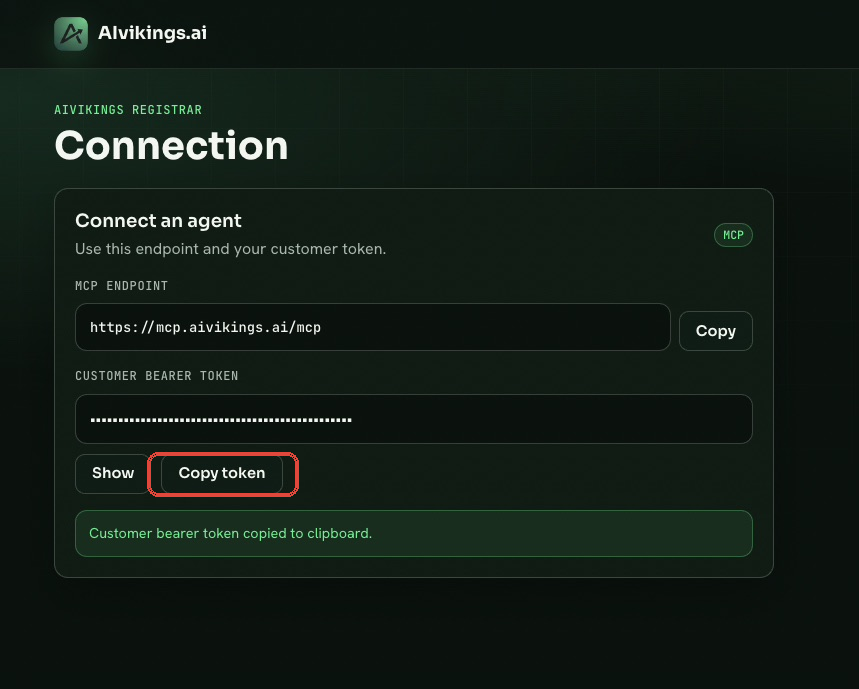
Keep this token private. It is used to approve access for the Claude connector on your AiVikings account.
2. Open Connectors in Claude and add a custom connector
Section titled “2. Open Connectors in Claude and add a custom connector”In Claude, open Settings, then Customize, then Connectors. Click Add and choose Add custom connector.
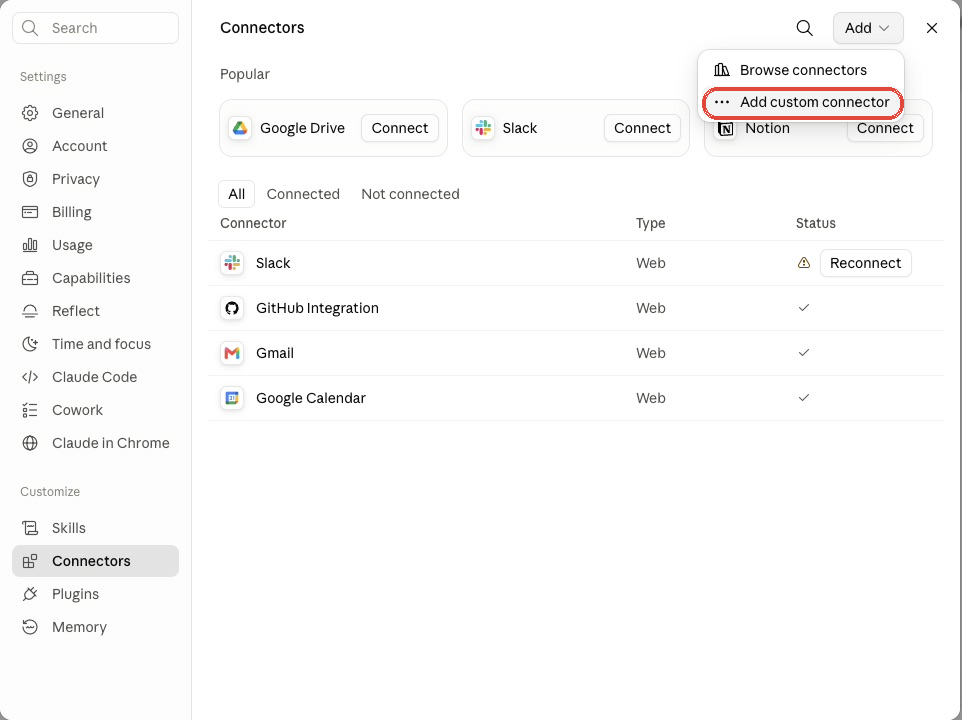
Claude connects from Anthropic’s cloud to the public AiVikings HTTPS endpoint, so there is no local tunnel, local server, or desktop bridge to run.
3. Enter the connector name and MCP server URL
Section titled “3. Enter the connector name and MCP server URL”Give the connector a name you will recognize, for example AiVikings MCP. Paste this URL into the remote MCP server URL field:
https://mcp.aivikings.ai/mcpThen click Continue.
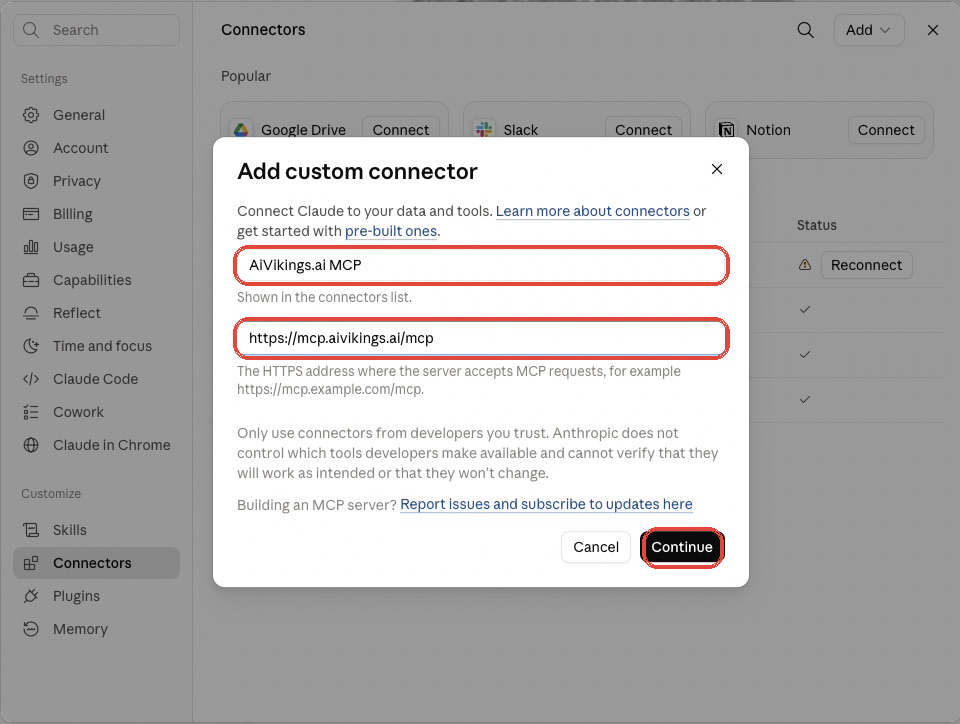
The exact connector name is only for your Claude account. The URL must match the AiVikings MCP endpoint exactly.
4. Confirm the OAuth settings
Section titled “4. Confirm the OAuth settings”AiVikings MCP is protected with OAuth. Leave Authentication set to Always required. For a normal setup, use Claude’s hosted client metadata option if Claude offers it.
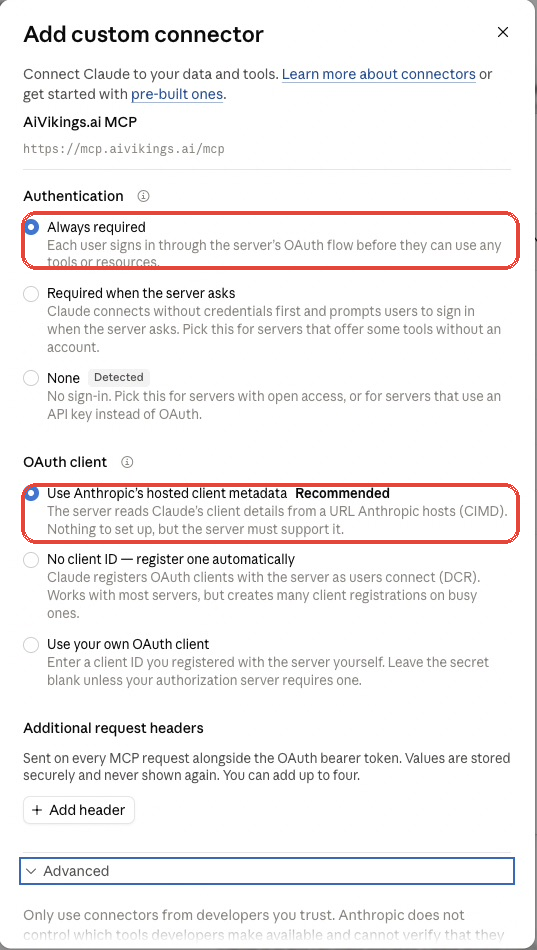
Do not add custom request headers for the MCP server. Claude should complete the OAuth and dynamic client registration flow from the published metadata.
5. Click Connect
Section titled “5. Click Connect”After the connector is saved, Claude shows the connector detail screen. Click Connect to begin authorization.
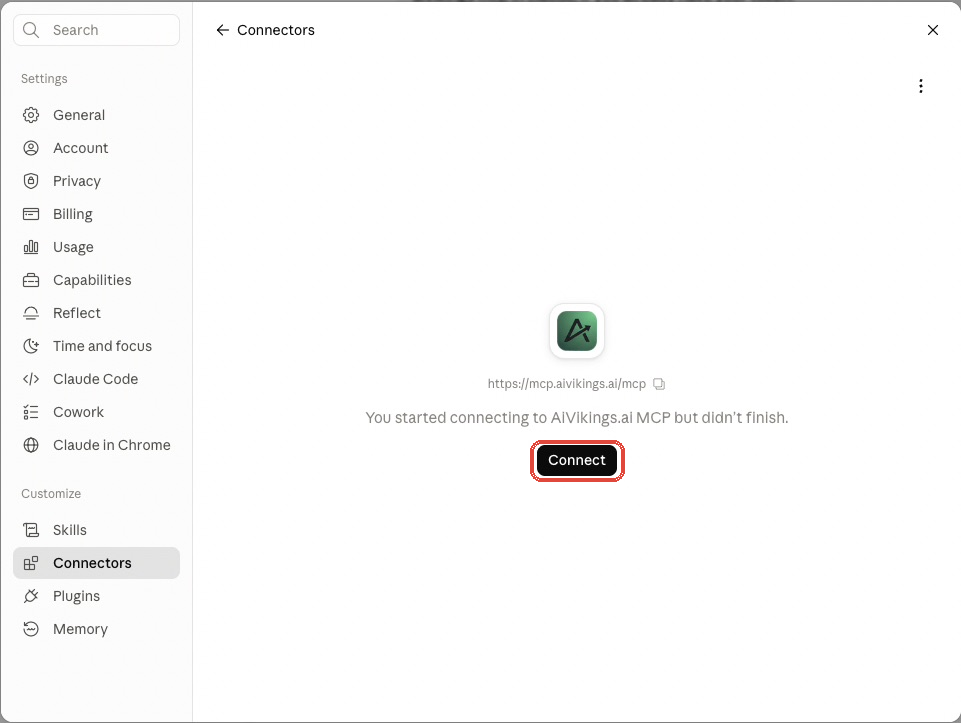
This starts the authorization flow between Claude, the AiVikings MCP server, and your AiVikings account.
6. Authorize the connector in AiVikings
Section titled “6. Authorize the connector in AiVikings”The AiVikings authorization page opens and shows the access being requested. Paste your customer bearer token from the Connection page and click Authorize.
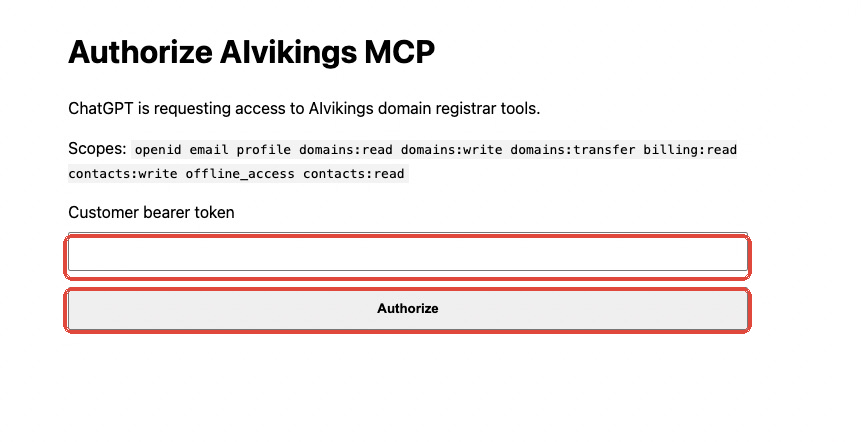
The authorization page may look similar across MCP clients. The important part is that you are approving access to your own AiVikings account before Claude can call protected tools.
7. Set tool permissions in Claude
Section titled “7. Set tool permissions in Claude”After authorization, AiVikings appears in Claude’s connector tool list. Claude lets you control whether tools are always allowed, blocked, or require confirmation.
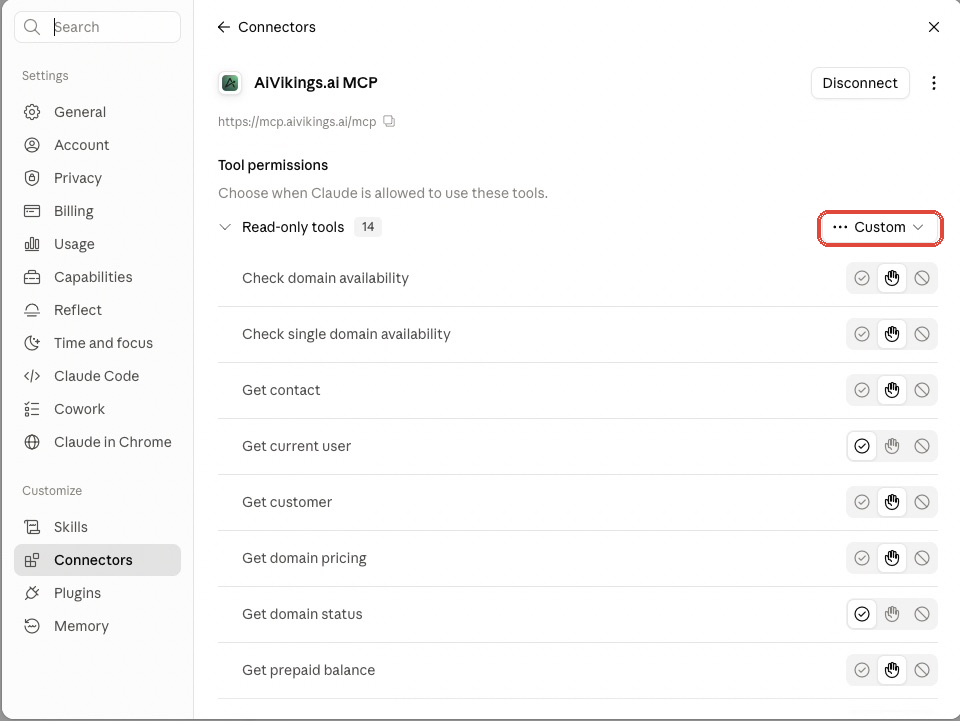
A sensible setup is to allow read-only tools like availability checks and pricing, while keeping write actions such as registration, transfer, renewal, and nameserver updates on confirmation. Those write tools can affect real domains or account credit.
8. Test the connection with a real request
Section titled “8. Test the connection with a real request”Open a Claude chat, enable AiVikings if needed, and ask a domain question in plain language.
Try one of these examples:
Is a domain like my-agent-project.icu available?Find available .icu domains for a small pricing tracker agent.List the domains in my AiVikings account.If Claude has permission to use the relevant tool, it should call AiVikings MCP instead of asking you to check manually.
Troubleshooting
Section titled “Troubleshooting”If Claude cannot reach the connector, confirm the URL is exactly https://mcp.aivikings.ai/mcp with no trailing space.
If authorization fails, copy a fresh token from the AiVikings Connection page and reconnect the Claude connector.
If AiVikings does not appear inside a chat, enable it from Claude’s connector or tool menu for that conversation.
If your workspace is managed by an organization, an owner or admin may need to approve custom connectors before individual users can connect them.